Azure Blob
This is an example of Azure Blob.
- You must have an Azure storage account.
Step 1: Select Azure Blob
Select Azure Blob as the storage type. 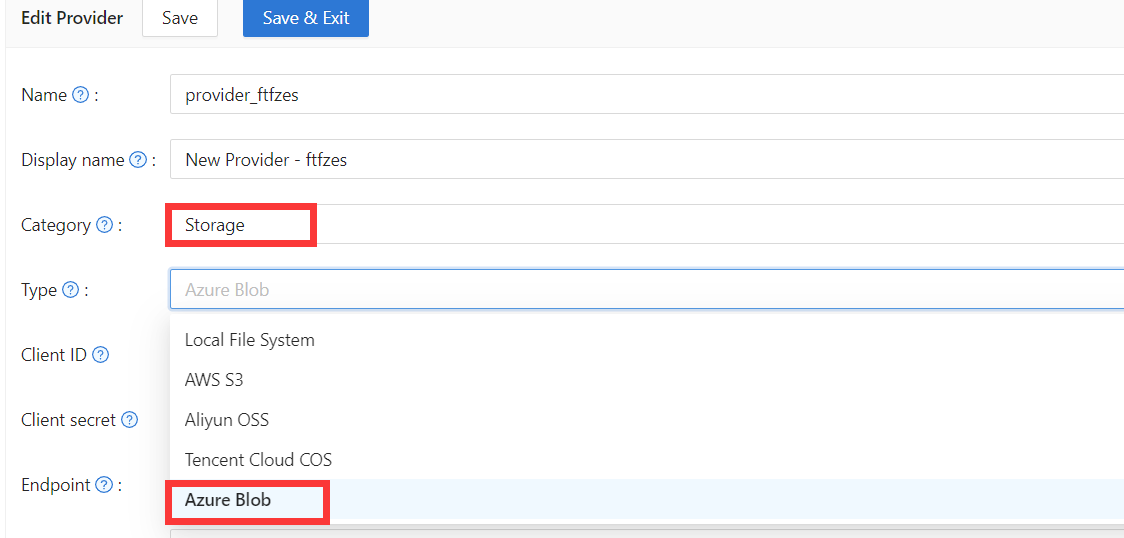
Step 2: Fill in the necessary information in Casdoor
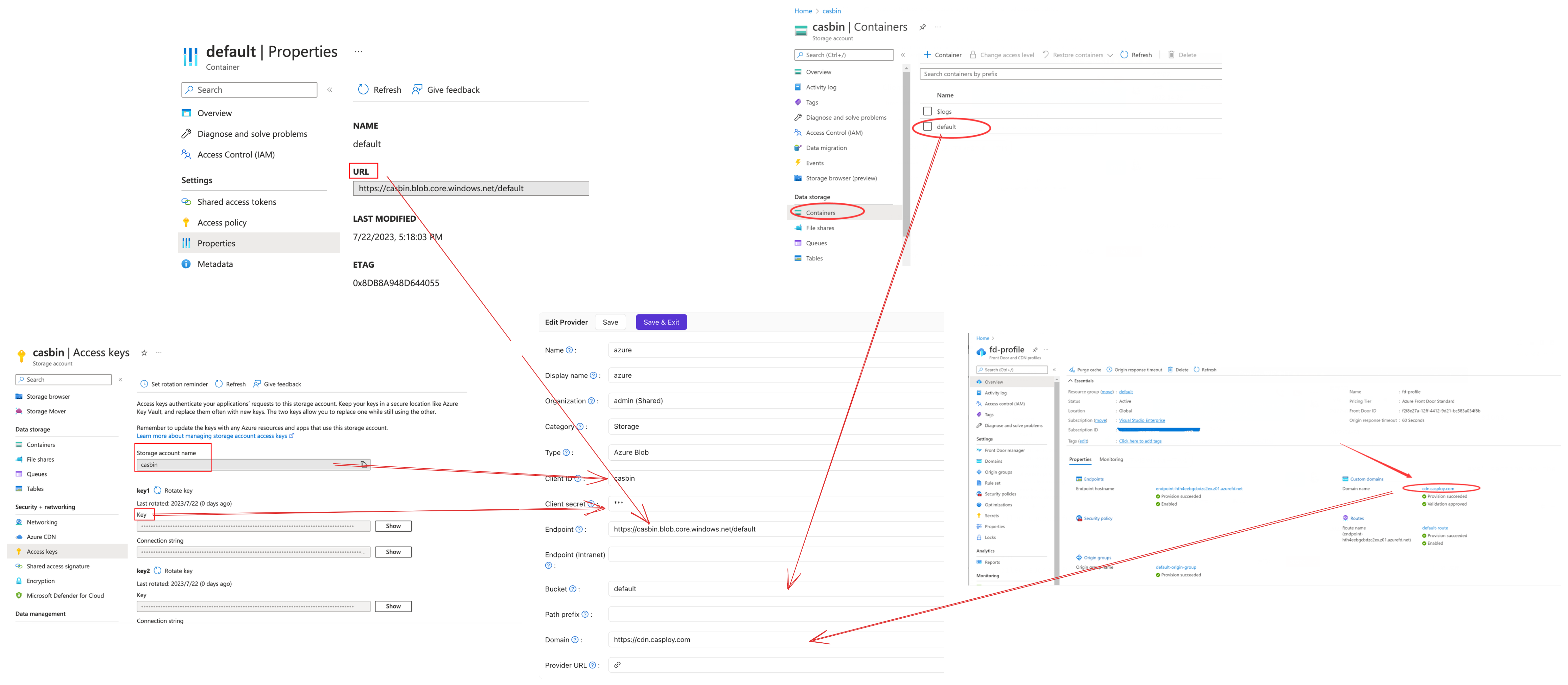
There are four required fields: Client ID, Client secret, Endpoint, and Bucket. The corresponding relationship to the Azure Blob account is as follows:
| Field Name | Azure Name | Required |
|---|---|---|
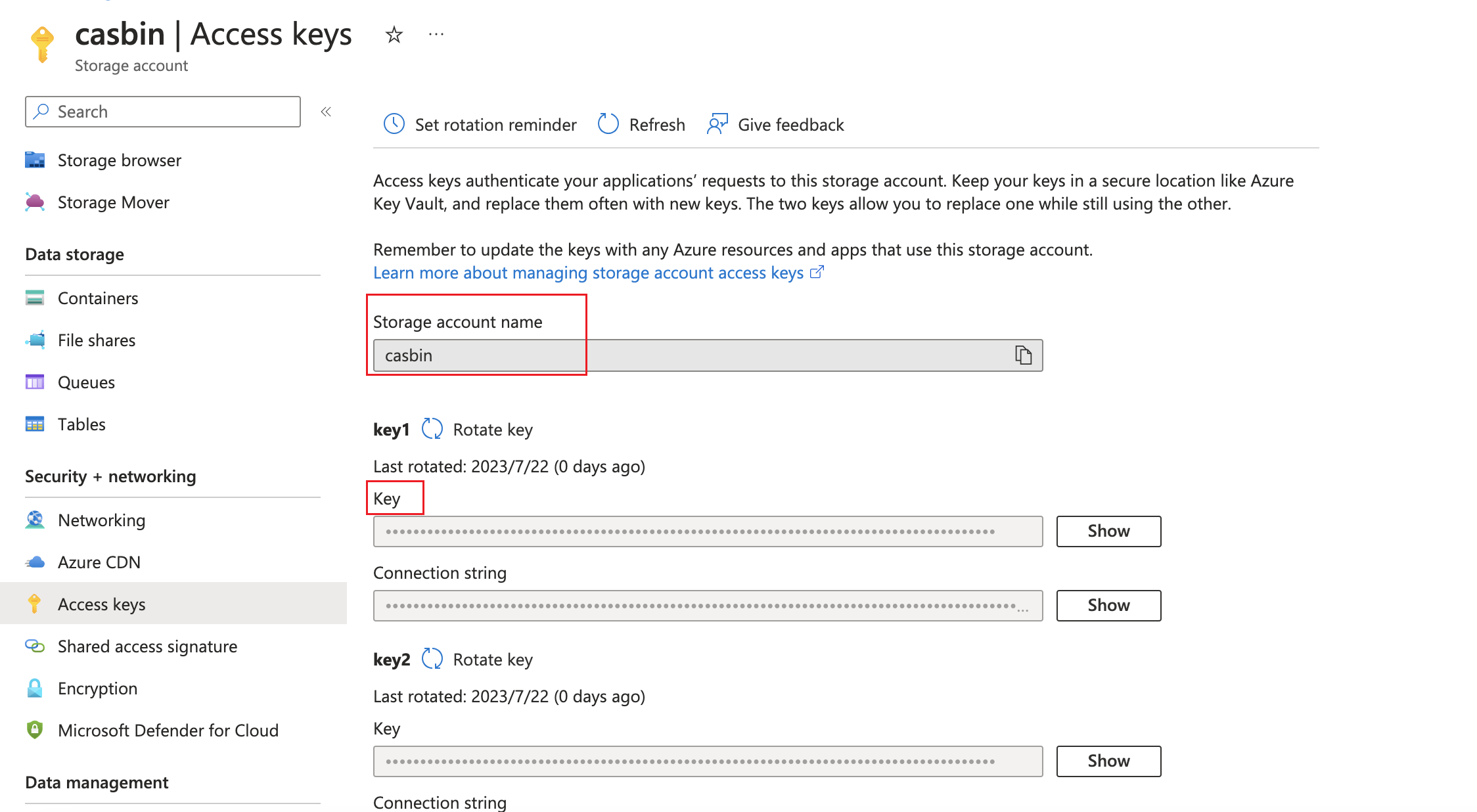
| Client ID | AccountName | Required |
| Client secret | AccountKey | Required |
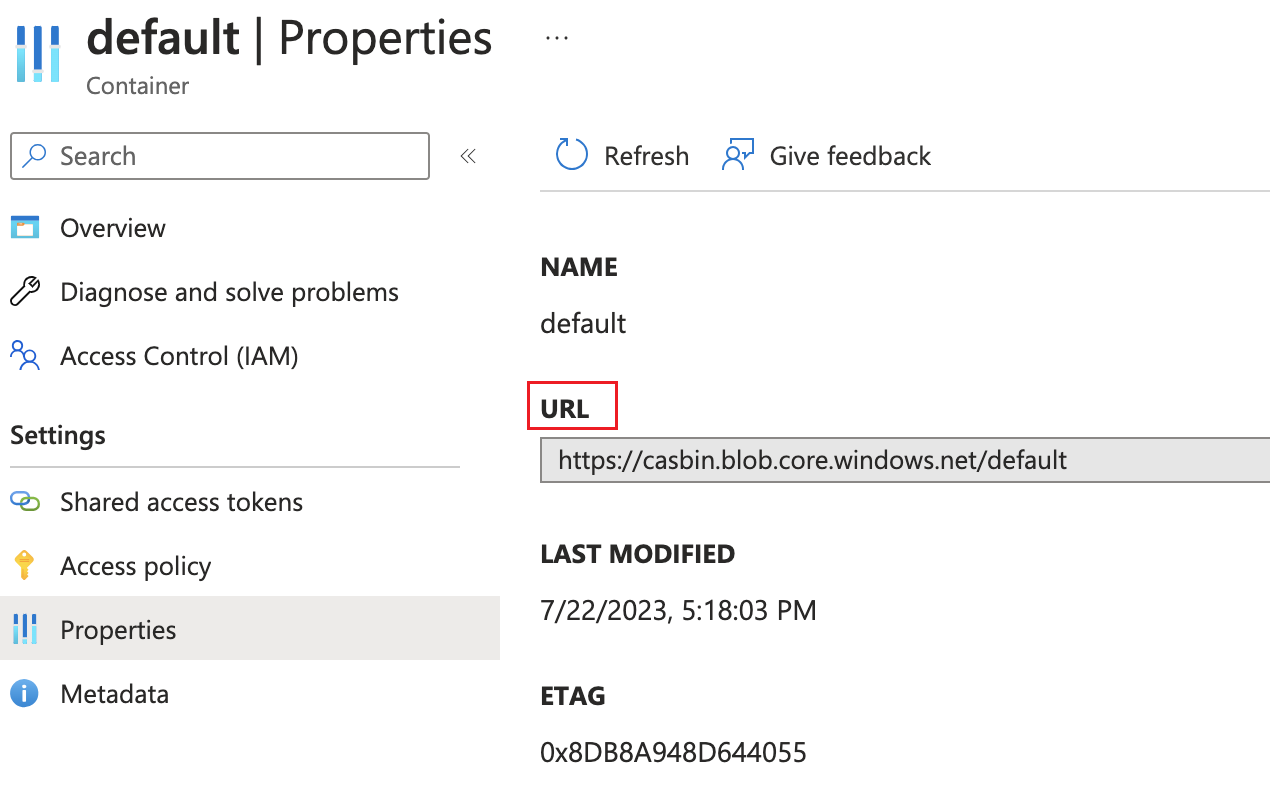
| Endpoint | ContainerUrl | Required |
| Endpoint (intranet) | PrivateEndpoint | |
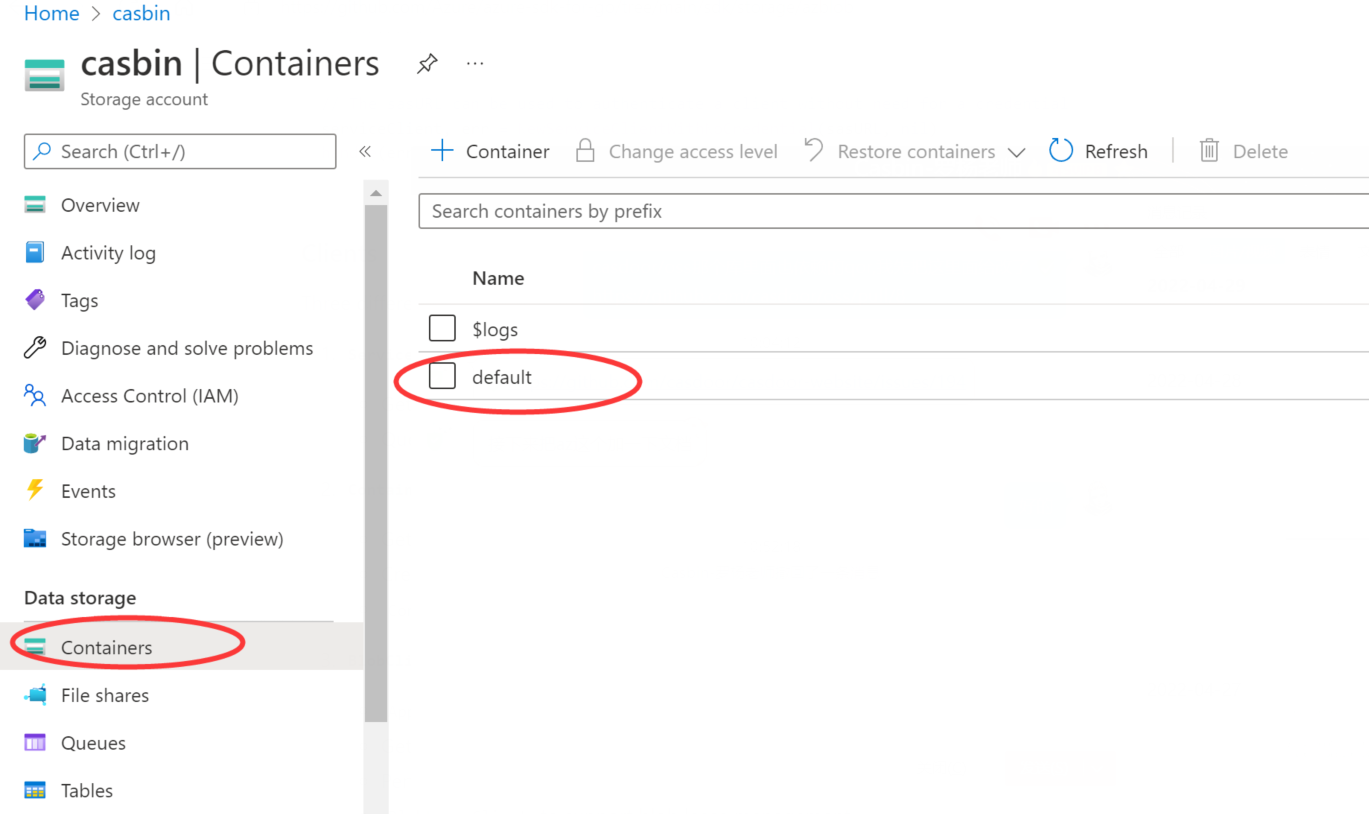
| Bucket | ContainerName | Required |
| Path prefix | ||
| Domain | DomainName |
- AccountName
The AccountName is your AccountName.
- AccountKey
The AccountKey is your key to access the Azure API.
You can obtain your account key from the Azure Portal under the "Access Keys" section on the left-hand pane of your storage account.
- ContainerUrl
You can obtain the ContainerUrl from your container properties.
- (Optional) PrivateEndpoint
Azure Private Endpoint is a feature that allows connecting Azure services to Azure Virtual Network (VNet) private subnets. You can refer to the official Azure documentation for configuration: private endpoint config
- ContainerName
In this example, a default container called 'default' is created.
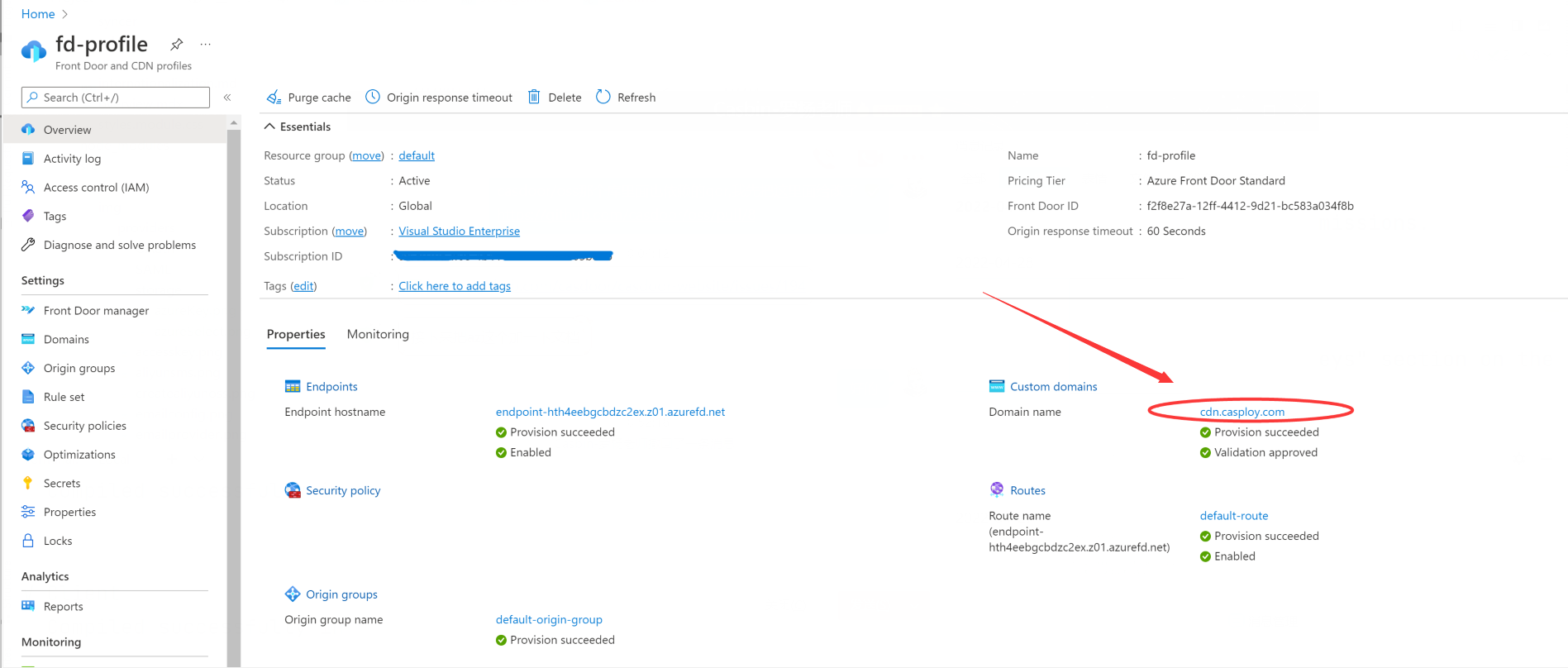
- (Optional) DomainName
The custom domain name in your Azure CDN.
Step 3: Save your configuration
The final result is as follows:
Now you can use Azure Blob Storage services in your application.