Настройка учетной записи
Введение
В организации вы можете настраивать элементы учетной записи пользователей. Это включает в себя, видим ли каждый элемент, а также его правило просмотра и правило изменения.
Когда вы настраиваете элементы учетной записи в организации, эта конфигурация вступает в силу на домашней странице всех членов этой организации.
Как настроить?
У элементов учетной записи есть четыре атрибута:
| Column Name | Selectable Value | Description |
|---|---|---|
| Name | - | Account item name. |
| Visible | True / False | Select whether this account item is visible on the user home page. |
| ViewRule | Rule Items | Select a rule to use when viewing the account item. Controls who can view this field. |
| ModifyRule | Правила | Выберите правило для изменения элемента учетной записи. Controls who can edit this field. |
Understanding View Rule and Modify Rule
View rule and Modify rule provide field-level permission control for user account items:
- View rule: Determines who can see the value of this account field (e.g., email, phone number, address)
- Modify rule: Determines who can change the value of this account field
This is different from the broader Permission feature, which controls access to applications and resources. View rule and Modify rule specifically control access to individual user profile fields.
Configuration Steps
Чтобы настроить элементы учетной записи, выполните следующие шаги:
Navigate to Organizations in the Casdoor sidebar
Click on your organization to open the Edit Organization page
Scroll down to the Account items section
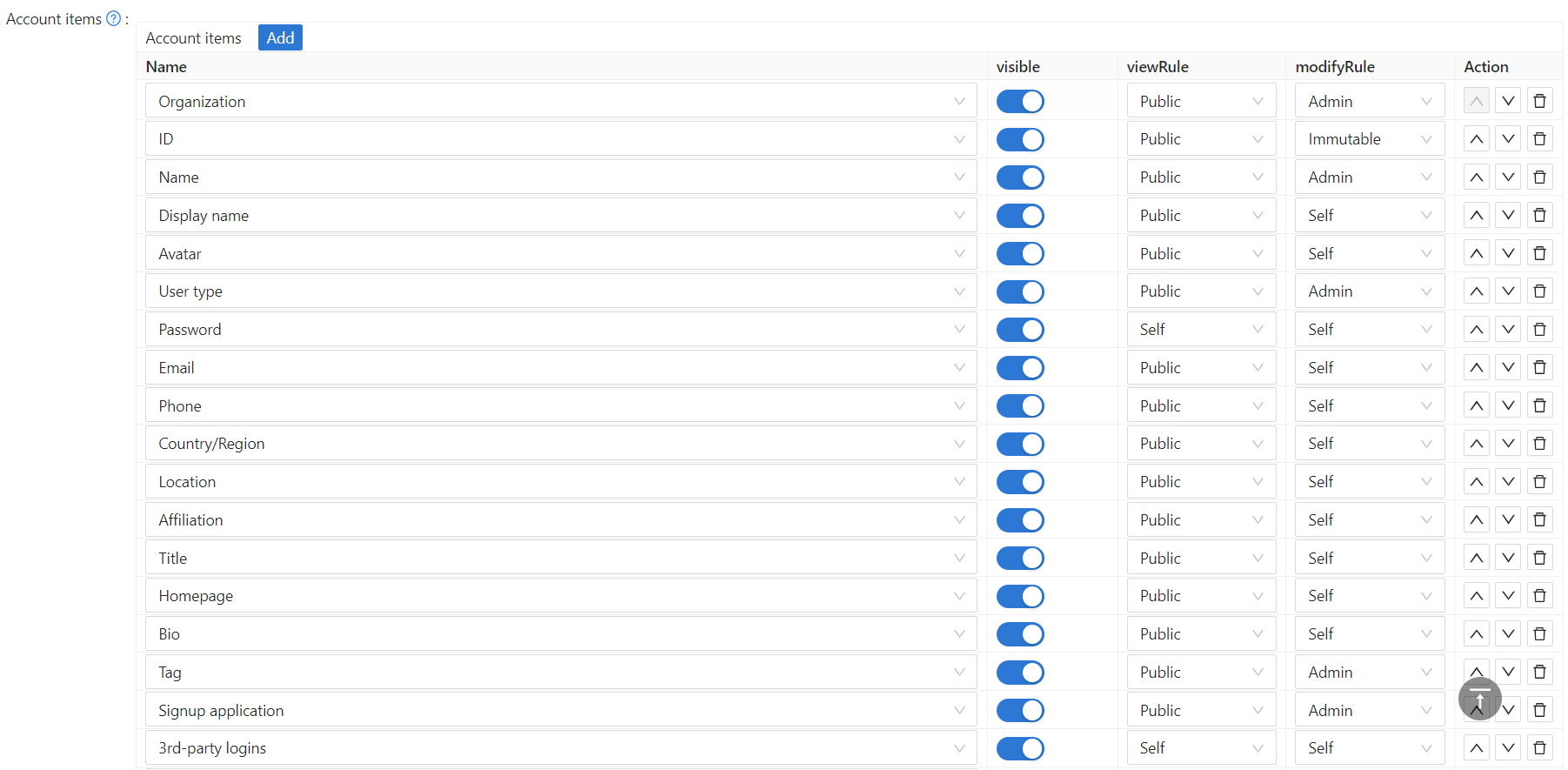
Casdoor предоставляет простые операции для настройки элементов учетной записи:
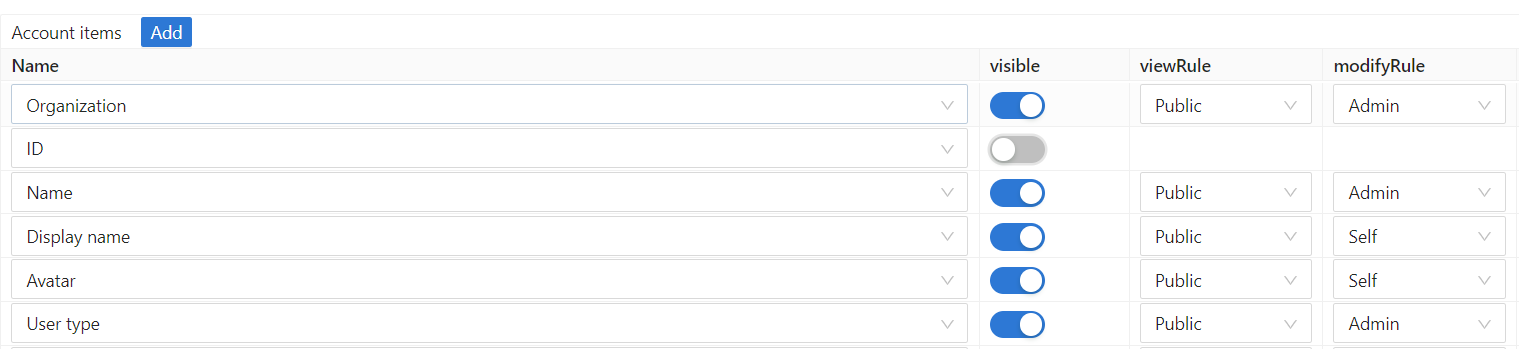
a. Set item visibility
Control whether this account item is shown on the user home page:
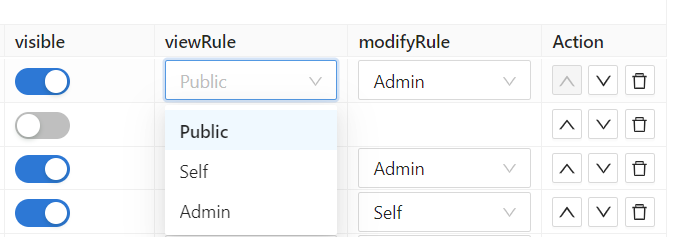
b. Set viewing and modifying rules
Configure who can view and modify each field:
Available Rules
There are 3 rules available for both View rule and Modify rule:
- Public: Everyone has permission. Any user can view/modify this field for any user.
- Self: Each user has their own permission. Users can only view/modify their own field values. The system identifies users by comparing their ID fields first, and if unavailable, falls back to matching the combination of organization owner and username. This ensures the rule works correctly even for users created before the ID field was introduced.
- Admin: The administrator has permission. Only organization administrators can view/modify this field for users.
Example Use Cases
Here are some common configuration patterns:
| Field | View Rule | Modify Rule | Use Case |
|---|---|---|---|
| Имя | Public | Self | Everyone can see names, but users can only change their own |
| Электронная почта | Self | Self | Users can only see and change their own email |
| Телефон | Admin | Admin | Only admins can see and change phone numbers (for privacy) |
| Отображаемое имя | Public | Self | Public profile name visible to all |
| Пароль | Self | Self | Users can only change their own password |
Use Admin rules for sensitive fields like phone numbers, addresses, or internal identifiers that should only be managed by administrators.
These field-level permissions work in conjunction with the broader Permission system in Casdoor. The Permission system controls access to applications and API resources, while View rule and Modify rule control access to specific user profile fields within the Edit Organization page configuration.
Таблица учетных записей
Ниже приведены все поля элемента учетной записи. Для описаний вы можете обратиться к пользователю.
ОрганизацияIDNameDisplay nameАватарТип пользователяPasswordEmailPhoneCountry codeСтрана/РегионМестоположениеПринадлежностьЗваниеID card typeID cardReal name- The user's verified real name (locked after ID verification)ID verification- Controls visibility and access to the verify identity buttonДомашняя страницаБиографияТегЗаявка на регистрациюRegister typeRegister sourceRolesPermissionsGroupsВход через сторонние сервисыСвойстваАдминистраторЗапрещенУдаленMulti-factor authenticationWebAuthn credentialsManaged accountsMFA accounts