Übersicht
Adding an Email provider
Click on
Addto add a new provider.Select
Emailunder theCategorysection.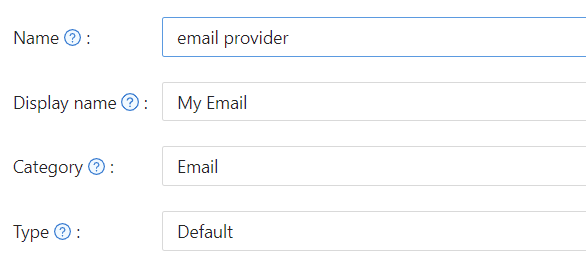
Fill in the fields for
Username,Password,Host, andPortfor your SMTP service.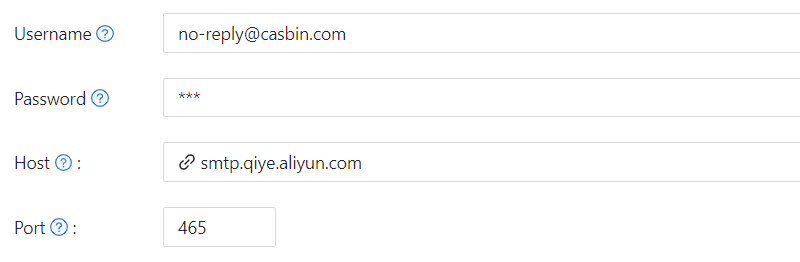
Customize the
Email TitleandEmail Content, then save the changes.
Proxy configuration
If your server cannot directly access the SMTP service (such as Gmail), you can enable the proxy option. When enabled, email traffic will be routed through the SOCKS5 proxy configured in Casdoor's configuration file.
To enable proxy support, toggle the Enable proxy switch in the provider settings. This is particularly useful when connecting to external email services from restricted network environments.
Modify email content
You can customize email templates using placeholders and special tags to create dynamic content.
Available placeholders
%{user.friendlyName} - Displays the user's display name or friendly name in the email.
%s - Replaced with the verification code when sending authentication emails.
%link - The password reset link that allows users to reset their password directly from the email. This placeholder must be used within <reset-link> tags.
Password reset link
The password reset link feature enables users to reset their password by clicking a link in the email instead of manually entering a verification code. This provides a smoother user experience for password recovery.
To enable password reset links in your email template:
- Wrap the link content with
<reset-link>tags - Use the
%linkplaceholder where you want the actual reset URL to appear - The content inside
<reset-link>tags will only appear in password reset emails
Example with plain text:
You have requested a verification code at Casdoor. Here is your code: %s, please enter in 5 minutes. <reset-link>Or click %link to reset</reset-link>
When used for password reset, users will see both the verification code and a clickable link. For other verification scenarios (signup, login), only the code will be shown.
Example with HTML template:
<!DOCTYPE html>
<html>
<body>
    <h2>Password Reset Request</h2>
    <p>Hello %{user.friendlyName},</p>
    <p>Your verification code is: <strong>%s</strong></p>
    <p>This code will expire in 5 minutes.</p>
    <reset-link>
        <p>Alternatively, you can <a href="%link">click here to reset your password</a> directly.</p>
    </reset-link>
    <p>If you didn't request this, please ignore this email.</p>
</body>
</html>
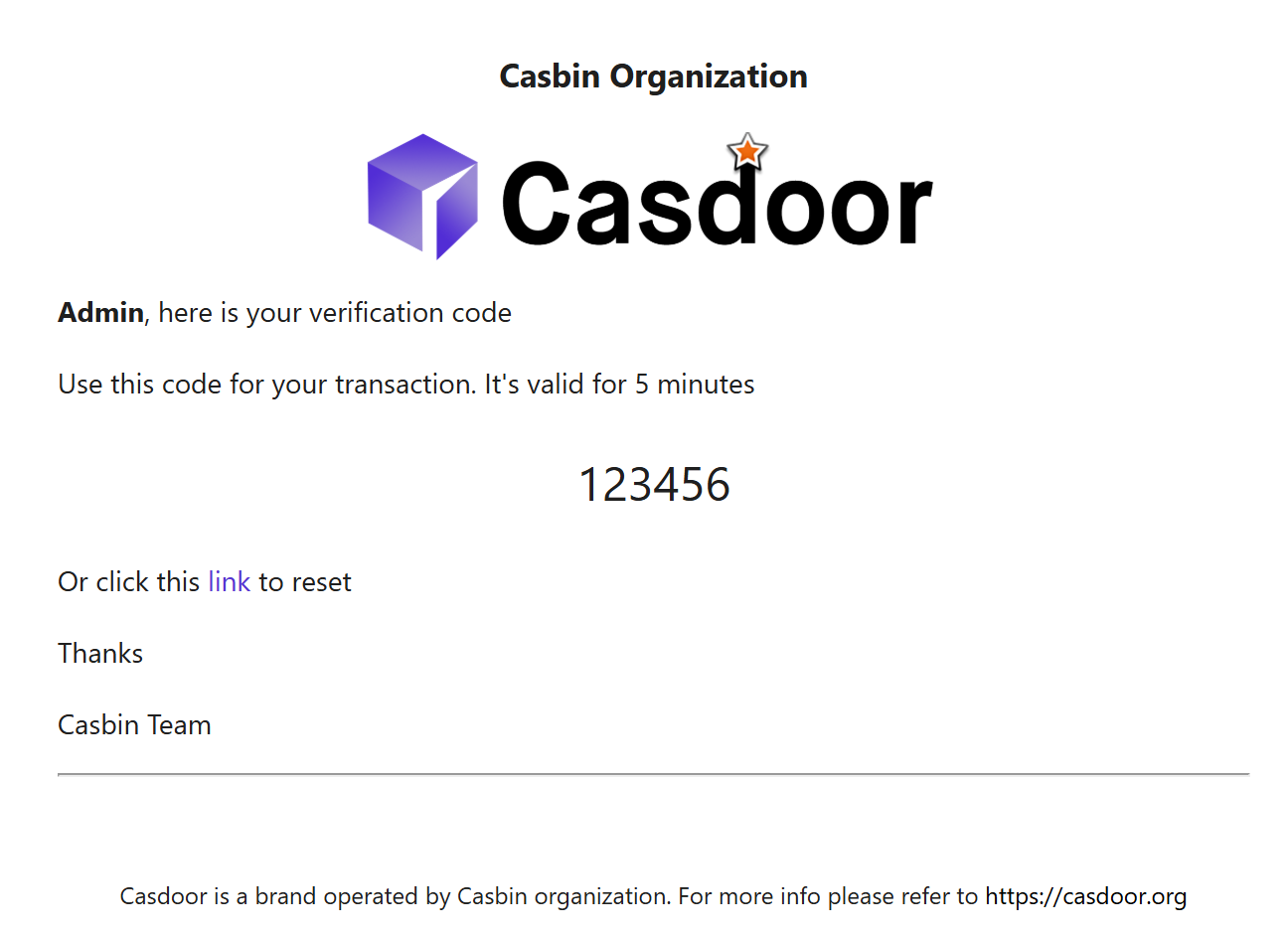
The <reset-link> block is automatically removed from emails sent for other purposes like signup or login verification, ensuring the reset link only appears when appropriate.