Specify Login Organization
Here, we will show you how to enable the option to specify the login organization for the application.
For example, the endpoint /login is the default sign-in page for accounts belonging to the built-in organization. However, you can enable the option to specify the login organization on the app-built-in application that belongs to the built-in organization. This allows the user to select an organization when logging in. After the user selects the organization, they will be redirected to /login/<organization>.
Configuration
On the application edit page, you can find the Org select mode configuration option. You can select the mode from the dropdown list.

- None: The organization select page will not be shown.
- Input: The user can input the organization name in the input box.
- Select: The user can select the organization from the dropdown list.
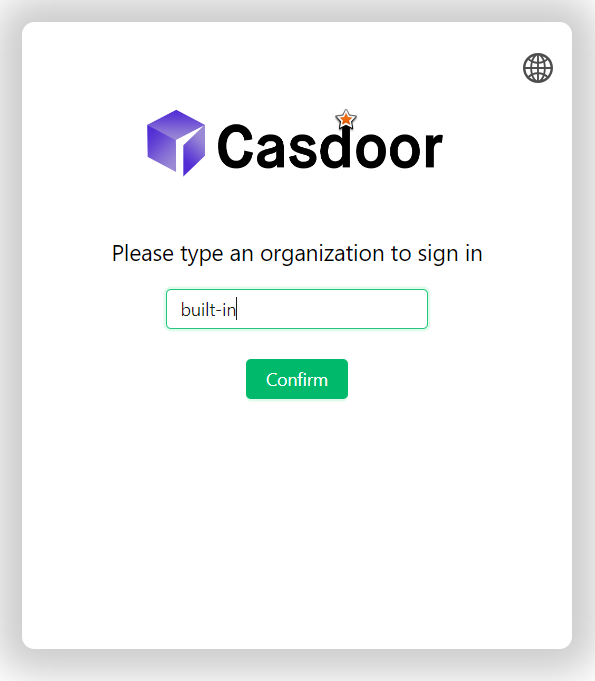
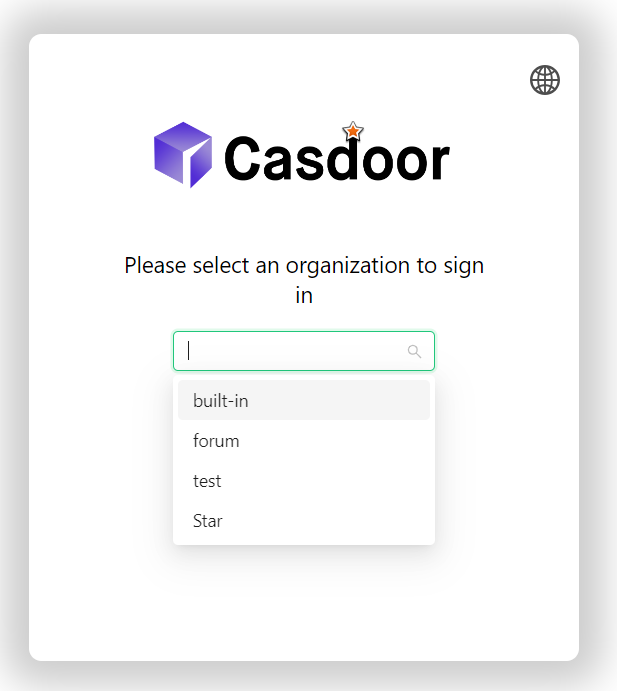
The organization select page will only be shown when the route is /login or <organization>/login. This means that the application should be set as the default application in the organization or the app-built-in.
Automatic Organization Redirect
When a user's session expires, Casdoor remembers which organization they last used and automatically redirects them to that organization's login page. This saves time by eliminating the need to select the organization again after a session timeout.
The organization context is stored in the browser's localStorage when you visit an organization-specific login page (e.g., /login/my-org). When your session expires and you need to log in again, Casdoor automatically redirects you to that same organization's login page instead of the generic /login page.
If no organization context is found in localStorage, you'll be redirected to the default /login page where you can select an organization using the configured mode (Input or Select) if enabled.